
The Complete Mosque Donation Kiosk & Tap-to-Pay Setup Guide
Everything your mosque needs to set up digital donation kiosks and tap-to-pay devices — hardware recommendations, step-by-step installation, configuration, and management.

This guide is written for mosque IT administrators, board members, and volunteers who want to set up a modern digital donation system. It covers hardware selection, physical installation, software configuration, day-to-day management, and troubleshooting.
It is Friday afternoon. The imam finishes his khutbah with a passionate appeal for the building expansion fund. Three hundred people reach for their wallets — and half of them find nothing but a phone and a contactless debit card.
This is not a hypothetical scenario. Cash usage in the US has dropped below 16% of all transactions, and the trend accelerates every year. For mosques that still rely on cash donation boxes, this means hundreds of missed donations every Jumuah, thousands during Ramadan, and a growing disconnect between your community’s willingness to give and their ability to do so.
The solution is not complicated. A few Android devices, some mounting hardware, and the right software can transform how your mosque collects donations — permanently. This guide shows you exactly how.
What You Will Need: The Three Form Factors
Before buying anything, understand that a donation kiosk system has three distinct use cases, each requiring different hardware:
1. Handheld Devices (Roaming Collection)
Purpose: Volunteers walk through the congregation during Jumuah, Ramadan tarawih, or fundraising events. Donors tap their card or phone on the device to give.
Why this matters most: This is your highest-impact form factor. During a fundraising appeal, a volunteer with a handheld device can collect dozens of donations in minutes — no lines, no waiting, no cash handling.
2. Countertop or Floor-Standing Kiosks (Stationary Collection)
Purpose: Placed at the entrance, lobby, or hallway where congregants pass before or after prayer. Donors interact with a touchscreen to select a fund, choose an amount, and tap to pay.
Why this matters: These stand ready whenever the doors are open, so no volunteer has to run the collection. Place one at each entrance and giving is available on every visit, not just during an appeal.
3. In-Wall Mounted Displays (Permanent Installation)
Purpose: Flush-mounted in a wall or pillar for a clean, professional appearance. Functions like a countertop kiosk but looks built into the building.
Why this matters: This is the premium option for new construction or renovation projects. It signals permanence and professionalism.
Hardware Recommendations
A Critical Note About NFC and Tap-to-Pay
Before choosing hardware, you need to understand one thing: the NFC antenna on virtually all Android devices is on the back of the device. This means:
- Phones held in hand → NFC works perfectly (donor taps the back of the phone)
- Tablets mounted in enclosures → NFC may be blocked by the enclosure back panel
This is why we recommend a hybrid approach: use phones for tap-to-pay collection, and tablets for display/kiosk interaction where donors can select funds and amounts before being directed to a volunteer with a handheld device, or use QR code fallback for self-service.
Stripe’s Tap to Pay on Android requires:
- Android 11 or above
- Functioning NFC sensor
- Google Mobile Services with Google Play Store
- Security update within the past 12 months
- Device must not be rooted; bootloader must be locked
Recommended Handheld Devices (NFC Tap-to-Pay)
| Device | Price | NFC | Android | Battery | Where to Buy |
|---|---|---|---|---|---|
| Samsung Galaxy A15 5G (Renewed) | ~$90-120 | Yes | 14 | 5,000mAh | Amazon |
| Samsung Galaxy A16 5G (New) | ~$200 | Yes | 15 | 5,000mAh | Amazon |
| Google Pixel 7a (Renewed) | ~$160-225 | Yes | 13+ | 4,385mAh | Amazon |
Our recommendation: The Samsung Galaxy A15 5G (Renewed) at approximately $90 is the best value. NFC confirmed, 5,000mAh battery lasts a full day of event collection, 6.5-inch AMOLED screen is bright and readable, and it is available from Amazon with Prime shipping.
For mosques that want new devices with maximum longevity, the Samsung Galaxy A16 5G at $200 comes with 6 years of security updates — critical because Stripe requires recent security patches.
Important: The Samsung Galaxy A06 4G model does NOT have NFC. Only the A06 5G model does. Always verify NFC capability before purchasing.
Recommended Tablets for Kiosk Display
| Device | Price | Screen | Android | Where to Buy |
|---|---|---|---|---|
| Samsung Galaxy Tab A9+ | ~$149 | 11” TFT | 14 | Samsung |
| Lenovo Tab M11 | ~$150-180 | 10.95” IPS | 13 | Amazon |
Our recommendation: The Samsung Galaxy Tab A9+ at $149 offers the best combination of screen size, build quality, and Android version for the price. Note that this tablet does not have NFC — it is a display and interaction device, not a payment terminal.
Why every device above is Play Protect certified
Each model on this page is checked against Google’s own published certified-device list before we recommend it, and re-checked whenever this page changes. Every one above passes.
This is not a formality. Cheap uncertified Android boxes — the “$35 TV stick” tier — ship with malware resident in the firmware, which a factory reset does not remove; the FBI’s June 2025 BadBox 2.0 advisory (I-060525-PSA) names “Android devices that are not Play Protect certified” as an indicator of compromise. A masjid puts a donation kiosk on the same network. Uncertified devices also fail Stripe’s Tap to Pay requirements outright, because they have no Google Mobile Services.
Check any device yourself before you buy it: search Google’s Play Protect certified devices list for the exact model. If it is not on that list, do not put it on your network — whatever the price.
Accessories Per Form Factor
Handheld devices — per device:
| Item | Price | Notes |
|---|---|---|
| Rugged case with ring holder | $10-20 | Search “[phone model] rugged case ring holder” on Amazon |
| Wrist strap / lanyard | $5-10 | Prevents drops during roaming collection |
| Anker PowerCore 10000 power bank | ~$22 | Amazon — charges phone ~2x |
| Subtotal per device | ~$127-152 |
Countertop kiosk — per station:
| Item | Price | Notes |
|---|---|---|
| Samsung Galaxy Tab A9+ | $149 | Display tablet |
| Mount-It! Countertop Stand | ~$60 | Anti-theft, locking, freestanding or bolt-down |
| USB-C charger + cable | $15 | Standard charger, routed through stand cable channel |
| Subtotal per station | ~$224 |
Floor-standing kiosk — per station:
| Item | Price | Notes |
|---|---|---|
| Samsung Galaxy Tab A9+ | $149 | Display tablet |
| Mount-It! Floor Stand | ~$100 | Height adjustable, anti-theft, 360-degree rotation |
| USB-C charger | $15 | Hidden in base |
| Subtotal per station | ~$264 |
In-wall mount — per installation:
| Item | Price | Notes |
|---|---|---|
| Samsung Galaxy Tab A9+ | $149 | Display tablet |
| Mount-It! Wall Mount Enclosure | ~$57 | Universal fit, VESA 75x75, tamper-proof |
| PoE Texas In-Wall AC to USB-C | ~$70 | Fits standard US gang box, 30W output, no visible cables |
| Subtotal per installation | ~$276 | Professional installation may add $100-200 |
Sample Deployment Budgets
Small Mosque (100-300 congregants)
| Item | Qty | Unit | Total |
|---|---|---|---|
| Samsung Galaxy A15 5G (Renewed) — handheld | 3 | $90 | $270 |
| Rugged cases + straps | 3 | $15 | $45 |
| Power banks | 2 | $22 | $44 |
| Samsung Galaxy Tab A9+ — lobby kiosk | 1 | $149 | $149 |
| Mount-It! Countertop Stand | 1 | $60 | $60 |
| 6-port USB charging station | 1 | $30 | $30 |
| Total | ~$598 |
Mid-Size Mosque (300-800 congregants)
| Item | Qty | Unit | Total |
|---|---|---|---|
| Samsung Galaxy A16 5G — handheld | 6 | $200 | $1,200 |
| Rugged cases + straps | 6 | $15 | $90 |
| Power banks | 4 | $22 | $88 |
| Samsung Galaxy Tab A9+ — kiosks | 3 | $149 | $447 |
| Mount-It! Floor Stand | 1 | $100 | $100 |
| Mount-It! Countertop Stand | 2 | $60 | $120 |
| 6-port charging stations | 2 | $35 | $70 |
| Total | ~$2,115 |
Large Mosque (800+ congregants, multi-entrance)
| Item | Qty | Unit | Total |
|---|---|---|---|
| Samsung Galaxy A16 5G — handheld | 10 | $200 | $2,000 |
| Rugged cases + straps + lanyards | 10 | $20 | $200 |
| Power banks (20000mAh) | 5 | $40 | $200 |
| Samsung Galaxy Tab A9+ — kiosks | 4 | $149 | $596 |
| Mount-It! Floor Stands | 2 | $100 | $200 |
| Mount-It! Wall Mounts + PoE power | 2 | $127 | $254 |
| 6-port charging stations | 2 | $35 | $70 |
| TP-Link Deco XE75 WiFi mesh (3-pack) | 1 | $270 | $270 |
| Total | ~$3,790 |
Compare this to a single MOHID kiosk at $899 or a MasjidAl mDonate at $700-930, which give you one device with limited capabilities. For similar money, you get an entire fleet with far more flexibility.
WiFi Considerations
Your kiosks and handheld devices need reliable WiFi. Most mosques have adequate coverage, but large prayer halls with thick masonry walls can be challenging.
Recommended mesh WiFi systems:
| System | Price (3-pack) | Coverage | Best For |
|---|---|---|---|
| TP-Link Deco X55 | ~$150-200 | 6,500 sq ft | Budget option |
| TP-Link Deco XE75 | ~$250-300 | 6,800 sq ft | Best value |
Placement tips for mosques:
- One node near the main entrance / lobby area (where kiosks are)
- One node in the main prayer hall (for handheld devices during Jumuah)
- One node in the office / admin area
- Keep nodes elevated (on a shelf or wall-mounted) and away from metal surfaces
Dedicated network: Create a separate WiFi SSID for kiosk devices, distinct from the public mosque WiFi. This prevents bandwidth competition and improves security.
Software Setup: Muin Go
Muin Go is a React Native mobile app that runs on both phones and tablets. It handles everything from simple tap-to-pay to full kiosk mode with campaign selection, donor information capture, and live fundraising appeals.
Step 1: Install Muin Go
Download Muin Go from the Google Play Store on each device. Sign in with your organization’s Muin account credentials.
Step 2: Connect to Your Organization
After login, select your mosque / organization from the list. Muin is multi-tenant — if your organization manages multiple locations, each one appears separately.
Step 3: Configure Stripe Tap to Pay
On first use, the app will walk you through Stripe’s Tap to Pay setup:
- Terms & Conditions acceptance — required by Stripe for all Tap to Pay deployments
- NFC reader discovery — the app automatically discovers the phone’s built-in NFC reader
- Test transaction — verify the NFC reader works with a small test amount
This process takes about 2 minutes per device.
Step 4: Choose Your Collection Mode
Muin Go offers three collection modes, configurable per device:
Fixed Amount (QuickPay): A single pre-set amount displayed in large 72-point text, readable from 6 feet away. The NFC reader activates immediately — zero taps required from the donor. Perfect for events where a volunteer calls out “Who gives $100?” and walks through the crowd.
Preset Select: A grid of preset amount buttons ($5, $10, $20, $50, or custom values). The donor or volunteer taps a preset, then the NFC reader activates. Two taps total.
Open Entry: A full numeric keypad with configurable preset shortcuts, fee coverage toggle, and recurring giving option. The donor enters any amount. This is the most feature-rich mode.
Step 5: Enter Kiosk Mode (for Unattended Devices)
For devices that will operate unattended (countertop, floor, or wall-mounted), you need to enable kiosk mode. This is done through the Muin admin dashboard:
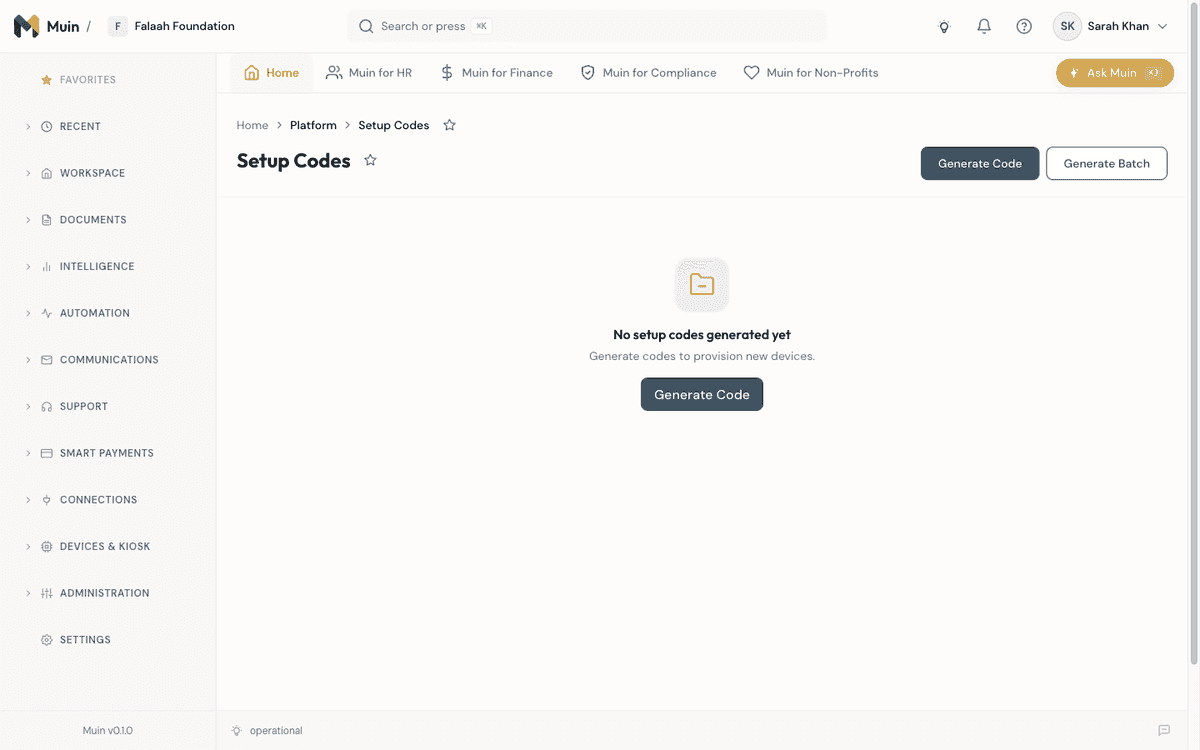
- In the admin dashboard, go to Devices > Setup Codes
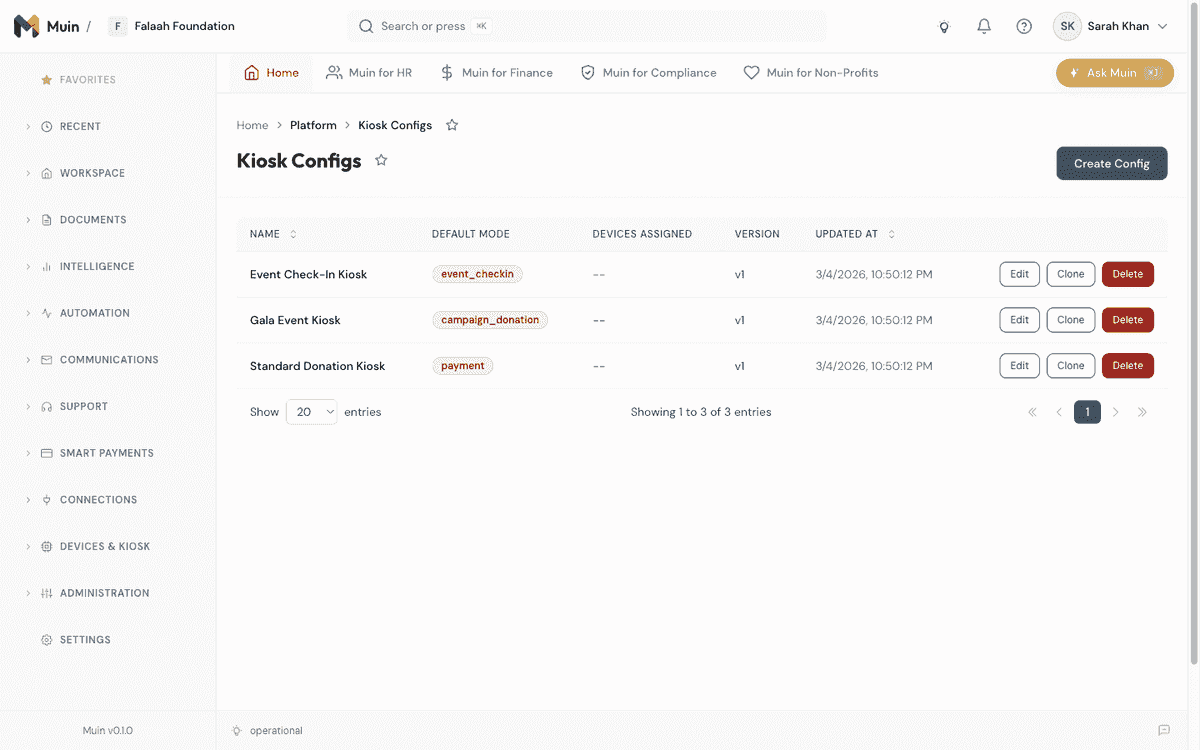
- Generate a setup code (format: ABC-123-XYZ). This code pre-assigns a kiosk configuration profile.
- On the device, tap Enter Kiosk Mode and enter the setup code
- Select the lockdown tier (see below)
- The device provisions itself, connects to your fleet, and begins operating
Lockdown Tiers
Muin supports four levels of device lockdown, from most restrictive to least:
| Tier | Name | What It Does | Best For |
|---|---|---|---|
| Tier 2 | Lock Task Mode | Full Android OS lockdown via Device Owner. Blocks Home, Back, Recents, notifications, USB, Bluetooth, WiFi changes, app installs. Requires ADB setup. | Permanent wall-mounted kiosks |
| Tier 3 | Kiosk Launcher | Sets Muin Go as the default launcher. If the app is closed, it auto-restarts via a watchdog service. Hides system bars. | Floor-standing kiosks |
| Tier 3 | Guided Access (iOS) | Uses Apple’s Guided Access to lock to a single app | iPad deployments |
| Tier 4 | App-Level Lock | PIN-protected exit only. No OS-level changes needed. | Handheld devices at events, temporary setups |
For permanent kiosk installations, we recommend Tier 2 or 3. For handheld devices used at events, Tier 4 is sufficient — it lets you unlock the device with a PIN when the event is over.
Kiosk Mode: Eight Ways to Engage Your Community
Once a device enters kiosk mode, it can operate in any of eight modes — switchable remotely at any time:
1. Payment Mode (Default)
The standard donation collection screen. Donors select an amount and tap to pay. Configurable with preset amounts, custom entry, fee coverage, and recurring giving options.
2. Campaign Donation Mode
A multi-step flow optimized for directed giving:
- Donor selects a campaign (Zakat, Building Fund, Ramadan, etc.)
- Chooses an amount from campaign-specific presets
- Optionally enters name and email
- Taps to pay
- Sees a personalized thank-you message
This is ideal for Jumuah collections where you want donors to direct their gift to a specific fund.
3. Live Appeal Mode
Designed for Ramadan fundraising nights and special events. An imam or speaker calls out amounts from the minbar, and this mode displays large-format “Who gives…” buttons on every kiosk simultaneously — pushed in real-time via the admin dashboard.
The admin can:
- Start a live appeal targeting all devices or specific tagged groups
- Set ask amounts ($1,000, $500, $250, $100)
- Update amounts in real-time as the appeal progresses
- End the appeal, and all devices return to their previous mode
4. Donor Wall
A real-time feed of recent donations, showing donor names (or “Anonymous”) and amounts. Creates social proof and encourages giving. Updates automatically every 15 seconds.
5. Digital Signage
An auto-rotating lobby display that carries two kinds of content in one ordered playlist: your fundraising campaigns — images, progress bars, and raised amounts — and your community bulletin board, the approved notices from members, local businesses, and sponsors. Each entry gets its own on-screen duration, and notices drop off on their own when their publish window ends. Acts as both awareness and inspiration — no interaction required from viewers.
Because a community board is meant to be read, a screen in Digital Signage mode stays on its content: it does not fall through to the attract screen while idle, the way the interactive modes do.
6. POS Mode
A tablet-optimized point-of-sale with product grid and cart sidebar. For bookstores, gift shops, or iftar dinner ticket sales. Detects tablet layout automatically (4-column grid on tablets, 3 columns on phones).
7. Event Check-in
Scan QR codes or search by name to check attendees into events.
8. Attract Screen (Screensaver)
After the configured idle timeout (default: 2 minutes), the device transitions to an attract screen. Options include:
- Campaign showcase — rotating campaign cards with progress bars
- Thermometer — a vertical fundraising thermometer showing real-time progress toward a goal
- QR code display — a branded QR code linking to your online giving page, so donors can complete their gift on their own phone
Tapping anywhere on the attract screen starts the kiosk interaction.
The Admin Dashboard: Managing Your Fleet
Everything about your devices — from what they display to how much they collect — is managed from the Muin admin dashboard. No physical access to devices required.
Fleet Dashboard
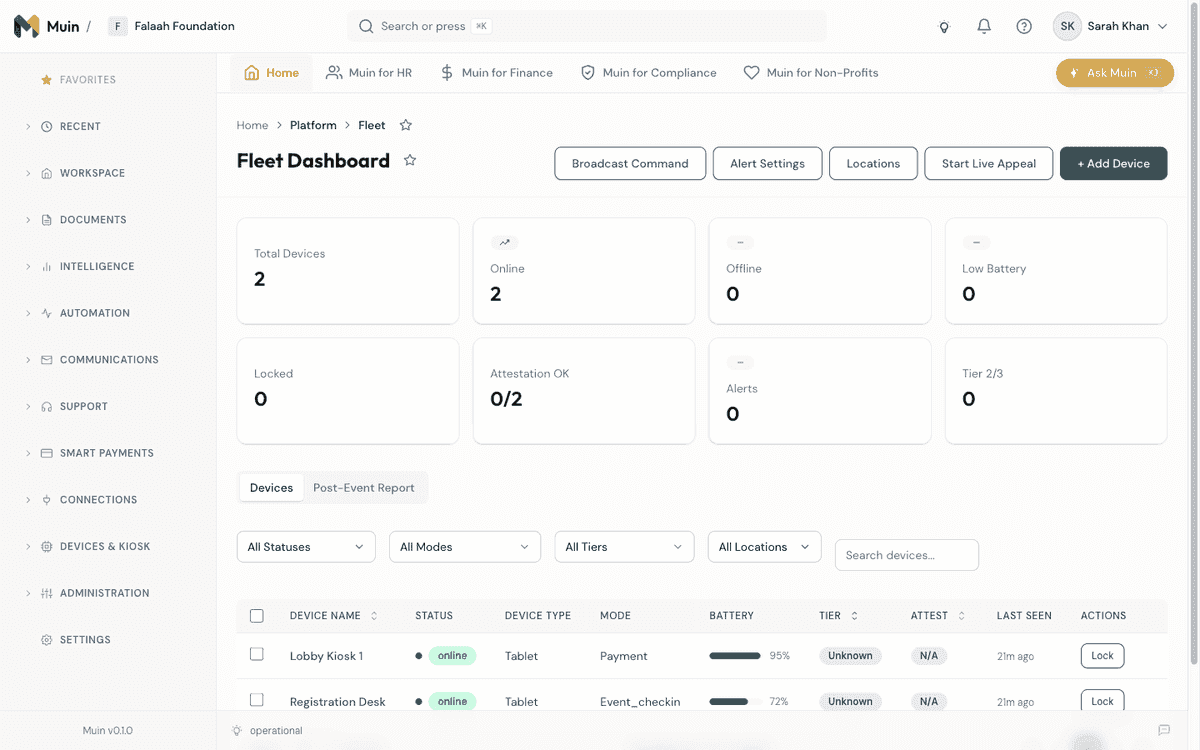
A single screen showing:
- Total devices, online/offline/locked counts
- Battery levels across all devices (with low-battery warnings)
- Mode distribution — how many devices are in each mode
- Lockdown tier distribution
- Real-time donation totals per device
Remote Configuration
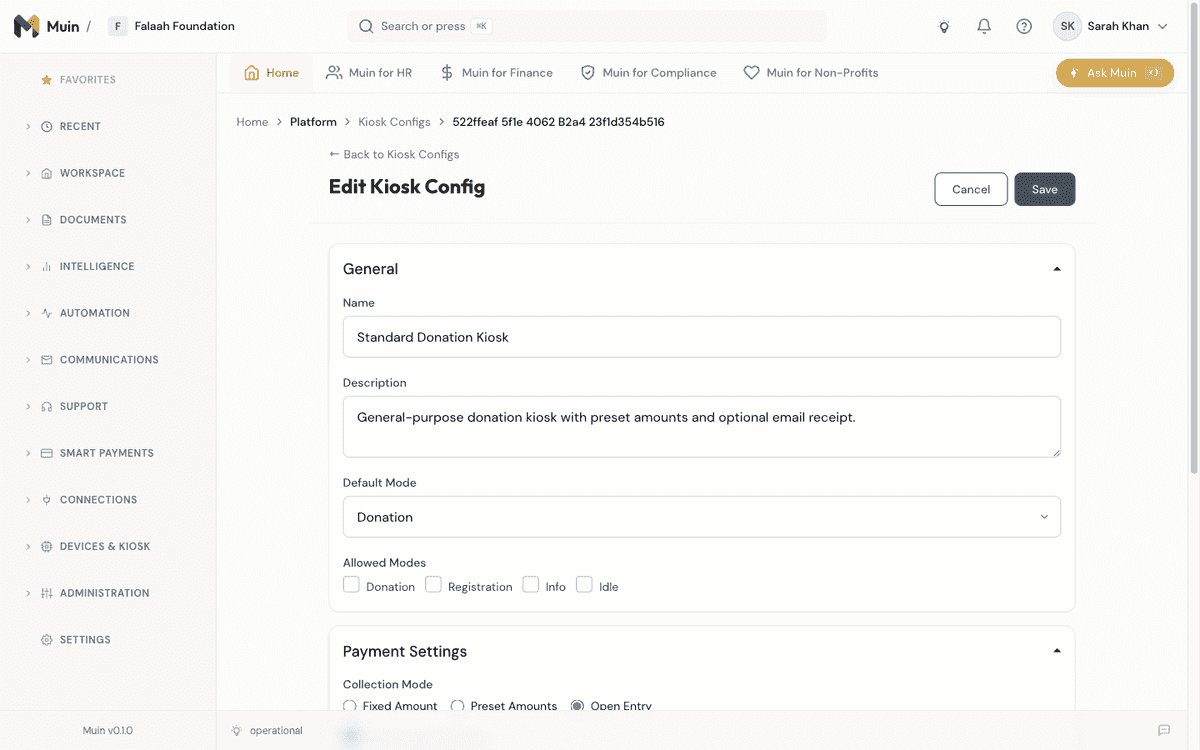
Every aspect of a kiosk can be configured remotely and pushed in real-time:
- Preset amounts — change from $5/$10/$20/$50 to $25/$50/$100/$250 for a special campaign
- Default fund — redirect all donations to the Ramadan fund during Ramadan
- Idle/session timeouts — shorter timeouts for high-traffic areas
- Branding — update logo, colors, and custom messages
- Donor fields — require name and email, or allow fully anonymous giving
- Fee coverage — enable/disable the option for donors to cover processing fees
- Recurring giving — enable/disable the recurring donation toggle
Changes push via WebSocket in real-time. If a device is offline, it picks up the update when it reconnects. If a device is in the middle of a payment session, the update queues and applies after the session completes — no interruption.
Remote Commands
Send commands to any device, any time:
| Command | What It Does |
|---|---|
| Lock | Immediately locks the device (e.g., after hours, or if stolen) |
| Unlock | Unlocks a locked device |
| Restart App | Restarts the kiosk app without touching the OS |
| Force Config Sync | Forces the device to re-download its configuration |
| Capture Screenshot | Takes a screenshot of what the device is currently displaying |
| Update App | Triggers an app update on the device |
| Wipe Config | Factory-resets the kiosk configuration (for decommissioning) |
Commands can be sent to individual devices or broadcast to groups filtered by location, tag, or all devices.
Device Monitoring & Alerts
Muin monitors every device continuously and alerts you when something needs attention:
- Offline alert — device has not sent a heartbeat in 10+ minutes (configurable)
- Low battery — battery drops below 15% (configurable)
- Tamper detection — device detects physical tampering attempts
- Geofence breach — device leaves its assigned location (GPS-based)
- Attestation failure — device integrity check fails (rooted device, compromised OS)
Alerts are sent via push notification and email to configured recipients.
Device Locations
Organize devices by physical location using a hierarchy: Building → Floor → Area → Room. Each location has GPS coordinates and an optional geofence radius. Devices assigned to a location trigger alerts if they move outside the geofence — useful for detecting theft of mounted kiosks.
Scenario Playbooks
Daily Operations (Unattended Kiosks)
Morning:
- Kiosks are already running from yesterday. Check the fleet dashboard for any offline devices.
- If a device shows low battery, send a volunteer to check the power connection.
Evening:
- Review the day’s donation total on the dashboard.
- No need to touch any device.
Jumuah (Friday Prayer)
Before Jumuah:
- In the admin dashboard, switch countertop kiosks to Campaign Donation Mode with the week’s target fund selected (e.g., “Masjid Operations” or “Building Fund”)
- Charge handheld devices and distribute to 2-4 volunteers
- Set handheld devices to Preset Select mode with amounts matching the khutbah appeal ($20, $50, $100, $250)
During Jumuah:
- Volunteers hold devices ready. After the khutbah, they walk through the rows.
- Donors tap their card or phone on the back of the volunteer’s device.
- Each transaction takes 3-5 seconds.
After Jumuah:
- Collect handheld devices and return to charging station.
- Review donation totals on the dashboard.
- Optionally, switch countertop kiosks back to default Payment Mode.
Ramadan Fundraising Night
Before the event:
- Charge all handheld devices
- Pre-configure kiosks with Ramadan campaign: Ramadan-specific preset amounts, custom Ramadan branding, thermometer attract screen showing progress toward the Ramadan goal
- Assign extra volunteers for device handling
During the imam’s appeal:
- Admin opens the dashboard and clicks Start Live Appeal
- Enters the campaign (e.g., “Ramadan Building Fund”) and ask amounts ($5,000, $2,500, $1,000, $500)
- Every kiosk and handheld device simultaneously shows the Live Appeal overlay with large “Who gives $5,000?” buttons
- As the imam adjusts amounts, the admin updates them in real-time — all devices refresh instantly
- Volunteers fan out with handheld devices
Between rounds:
- Admin updates ask amounts ($500, $250, $100, $50) for the next round
- Donor wall mode can be activated on one or more kiosks to show recent donors, creating social momentum
After the event:
- Admin clicks End Live Appeal — all devices return to their previous mode
- Review total raised on the campaign dashboard
- Thermometer on attract screens updates automatically
Eid / Special Occasion
Setup:
- Create a campaign for Eid donations (Zakat al-Fitr, Eid gifts, etc.) with appropriate fund categorization
- Switch all kiosks to Campaign Donation Mode
- If selling Eid dinner tickets or bookstore items, set one or more tablets to POS Mode with a product catalog
Roaming collection:
- Distribute handheld devices set to Fixed Amount (QuickPay) mode for quick $10 Zakat al-Fitr collection
- Set the QuickPay amount to match the current Fitrah rate
- Volunteers collect in the parking lot, at entrances, and in the prayer hall
Security Best Practices
Physical Security
- Bolt-down kiosk stands — All recommended floor and countertop stands support bolt-down mounting. Use concrete anchors for tile or stone floors.
- Keyed locking enclosures — Every recommended mount includes a key lock. Keep master keys in the office, give a spare to the head volunteer.
- Visible placement — Place kiosks in well-lit, high-traffic areas (lobby, entrance hall). Security cameras covering kiosk areas deter theft.
- Insurance — Add devices to your mosque’s property insurance. At $90-200 per device, the replacement cost is modest.
Digital Security
- Kiosk lockdown — Use Tier 2 or 3 for permanent kiosks. This prevents anyone from exiting the app, installing other apps, or changing device settings.
- PIN-protected staff access — Kiosk staff mode requires a PIN (max 5 attempts, 5-minute lockout) plus staff credentials.
- Remote lock — If a device is stolen, lock it instantly from the dashboard. Locked devices display only a “Device Locked” screen.
- Geofencing — Set a geofence around your mosque. If a device leaves the radius, you get an immediate alert.
- Device attestation — Muin verifies device integrity via Google Play Integrity API (Android) and Apple App Attest (iOS). Rooted or compromised devices are flagged.
- Separate WiFi network — Keep kiosk devices on a dedicated SSID, separate from guest WiFi.
- No card data stored — All payment processing goes through Stripe’s SDK. Card numbers never touch the device or your servers. PCI compliance is handled by Stripe.
Offline Handling
WiFi goes down. It happens. Here is how Muin handles it:
- Offline indicator — A subtle pill-shaped badge appears on screen showing cloud-offline status with a pending sync count.
- Cash payments — Cash donations can still be recorded offline. They queue locally and sync when connectivity returns.
- WebSocket reconnection — The app automatically attempts reconnection with exponential backoff (3s → 6s → 12s → 24s → 30s cap). After 10 failed attempts, it falls back to HTTP polling every 60 seconds.
- Pending config updates — If a configuration change is pushed while the device is offline, it applies automatically when the device reconnects.
- NFC payments — Tap-to-pay transactions require an active internet connection because they process through Stripe in real-time. If WiFi is down, the device cannot process card payments. This is a Stripe requirement, not a Muin limitation.
Mitigation: For critical events (Ramadan fundraisers, Eid), ensure your WiFi infrastructure is solid. Consider the mesh WiFi recommendations above. As a backup, some of our recommended phones support cellular data — a prepaid SIM with a small data plan (~$10-15/month) provides a failover.
Beyond Kiosks: Complete Digital Giving
Kiosks and tap-to-pay devices are one channel. Muin provides a unified giving ecosystem:
Online Giving Pages
Create branded giving pages for your mosque’s website. Donors select a fund (Zakat, Sadaqah, Building, Operations), choose an amount from presets or enter custom, and pay with card, Apple Pay, Google Pay, or ACH bank transfer.
Embeddable Widgets
Add a donation button or full inline donation form to your existing website with a single script tag:
<script src="https://muin.falaah.ai/embed/widget.js"
        data-tenant="your-mosque-slug"
        data-type="form"
        data-campaign="ramadan-2026">
</script>
Three widget types: a branded Donate button, a full inline donation form with Stripe Elements, and an embeddable campaign thermometer.
QR Code Giving
Generate branded QR codes that link to your giving page. Print them on:
- Jumuah khutbah flyers
- Ramadan schedules
- Donation box signs (“Prefer to give digitally? Scan here”)
- Event banners
- Business cards for board members
Muin tracks QR scans with conversion analytics — you can see how many people scanned versus how many completed a donation.
2-Way SMS Messaging
Growth+ plans include a dedicated toll-free number for 2-way SMS. Donors and members can text your number directly, and you can send receipts, reminders, and updates via SMS from your Unified Inbox.
Donor Portal
Every donor gets a self-service portal (no Muin account required — accessed via magic link) where they can:
- View their complete giving history across all channels (kiosk, online, QR, text)
- Download tax receipts
- Manage recurring donations (pause, resume, cancel, change amount)
- Update their contact information
- Manage payment methods
Tax Receipts
Muin automatically generates IRS-compliant tax receipts (PDF via ReportLab) and delivers them via the donor’s preferred channel: email, SMS, WhatsApp, QR code display on the kiosk, or thermal print. Year-end giving statements are generated automatically.
Troubleshooting Common Issues
| Issue | Likely Cause | Solution |
|---|---|---|
| Device shows “Offline” | WiFi connection lost | Check WiFi router/mesh. Move device closer to a mesh node. Check if the dedicated kiosk SSID is broadcasting. |
| NFC tap not responding | Card held too far or at wrong angle | Donor should hold card flat against the back of the device for 1-2 seconds. Some phone cases block NFC — try removing the case. |
| “Reader not found” error | Stripe Terminal SDK not initialized | Restart the app. If persistent, check that Google Play Services is up to date and NFC is enabled in Android settings. |
| Kiosk restarting unexpectedly | Low memory or OS update | Check available storage (Settings > Storage). Clear app cache if below 1GB. Ensure Android auto-updates are configured for overnight only. |
| Screen stays on attract mode | Touchscreen not responding | Clean the screen. Check if the enclosure is pressing on the screen edges. For severe cases, restart the device via remote command. |
| “Payment failed” after tap | Network timeout | Check WiFi signal strength at the device location. If signal is weak, add a mesh node nearby. Retry the transaction. |
| Device not receiving config updates | WebSocket disconnected | The device will fall back to polling automatically. Force a config sync from the dashboard. If persistent, restart the app remotely. |
| Battery draining fast | Screen always on + weak WiFi | Ensure the device is plugged in for stationary kiosks. For handheld devices, use airplane mode between events (then enable WiFi only). |
Getting Started: Your First Weekend
Here is a realistic timeline for getting your first devices up and running:
Day 1 (Saturday): Order Hardware
- Order devices from Amazon (Prime delivers by Monday/Tuesday)
- Order cases, stands, chargers, and cables
- While waiting: set up your Muin account, configure Stripe Connect, create your first kiosk configuration profile and campaign
Day 3 (Tuesday): Receive and Configure
- Unbox devices. Connect to WiFi. Run Android updates.
- Install Muin Go from Google Play Store on all devices
- Walk through Stripe Tap to Pay setup on each handheld device
- Generate setup codes in the admin dashboard
- Provision kiosk devices with setup codes
- Test a small donation ($1) on each device to verify everything works
Day 5 (Thursday): Install and Position
- Mount countertop or floor stands
- Place kiosks at planned locations
- Plug in power cables and verify continuous charging
- Run a final test transaction on each device
Day 6 (Friday): First Live Jumuah
- Brief volunteers on how to hold and operate handheld devices
- Monitor the fleet dashboard during and after Jumuah
- Collect feedback from volunteers and donors
- Adjust preset amounts, fund selections, or kiosk placement based on feedback
That is it. From zero to fully operational in less than a week, for a fraction of what legacy kiosk providers charge.
Frequently Asked Questions
Q: Do donors need to download an app to give? No. Donors tap their physical card, Apple Pay, or Google Pay on the device. No app download, no account creation, no email required (unless the kiosk is configured to request it).
Q: What payment methods are accepted? Visa, Mastercard, American Express, Discover, Apple Pay, Google Pay, Samsung Pay — any contactless payment method supported by Stripe.
Q: What are the transaction fees? Stripe’s in-person rate: 2.7% + $0.05 (2.2% + $0.00 for verified nonprofits), plus Muin’s 0.5% platform fee. For a nonprofit, a $100 donation costs $2.20 in processing + $0.50 platform fee = $2.70 total. You can enable “fee coverage” so donors optionally cover the fees.
Q: Can donors set up recurring donations from a kiosk? Yes. After the initial tap-to-pay transaction, the donor can opt into weekly, monthly, or quarterly recurring giving. They manage their recurring gift from the donor portal.
Q: What happens if a device is stolen? Lock it instantly from the admin dashboard. The device becomes unusable. Geofencing alerts notify you the moment it leaves the mosque premises. No payment data is stored on the device.
Q: Can I use iPads instead of Android devices? Muin Go runs on iOS as well. iPads work for kiosk display. For NFC tap-to-pay, Apple requires Apple Tap to Pay, which Muin supports with its Stripe Terminal SDK integration and full TTP compliance flow.
Q: How many devices can I manage? Your plan includes a number of device registrations, and you can add more with a device pack — see the pricing page for the per-plan allowance and add-on pricing. There is no per-device hardware fee from Muin, and the fleet dashboard is built for organizations managing anywhere from a handful to hundreds of devices across multiple locations.
Q: Can different devices show different campaigns? Yes. Each device can have its own kiosk configuration profile with different campaigns, preset amounts, funds, branding, and modes. Or you can assign the same profile to multiple devices.
Related Reading
- Tap, Give, Done: How NFC Kiosks Are Changing Non-Profit Fundraising – The pillar overview of NFC giving stations, kiosk modes, and the unified donor record
- Turn the Android Tablet You Already Own Into a Donation Kiosk – The QuickPay tap-to-give flow and BYOD economics
- Kiosk Campaigns docs and Card readers & hardware – Configuration and hardware references in the Muin documentation